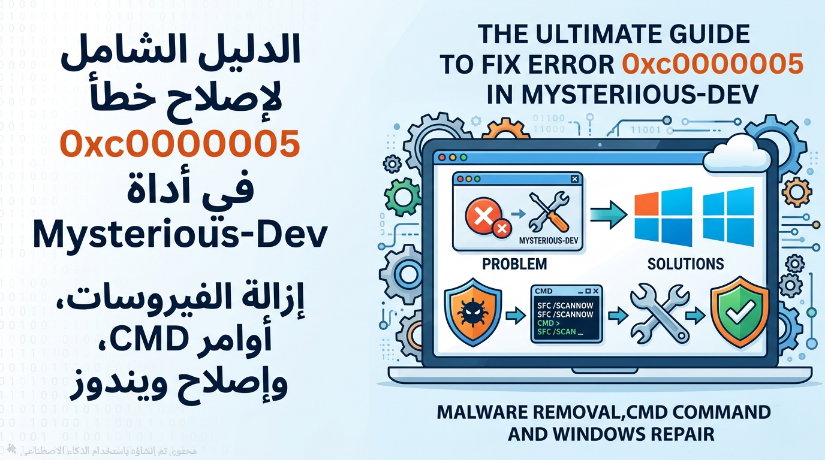
الدليل الشامل والنهائي لحل مشكلة الخطأ 0xc0000005 في أداة Mysterious-Dev
يعتبر الخطأ "Application Error 0xc0000005" من أكثر الأخطاء المزعجة التي تواجه مستخدمي أنظمة ويندوز، وخاصة عند محاولة تشغيل أدوات برمجية متقدمة مثل Mysterious-Dev. في كثير من الأحيان، يلاحظ المستخدم أن الأداة تعمل عند تثبيتها لأول مرة، ولكن بمجرد إغلاقها وإعادة تشغيلها، تظهر هذه الرسالة وتتوقف عن العمل.
المشكلة الأساسية هنا ليست في الأداة نفسها، بل في بيئة نظام التشغيل لديك. الأسباب الشائعة تتلخص في وجود فيروسات (Malware) تقوم بضرب الملفات التنفيذية (EXE)، أو وجود تلف عميق في ملفات النظام (Registry)، أو تعارض مع برامج الحماية. في هذا الدليل، سنمشي معاً خطوة بخطوة وبشكل تفصيلي لحل المشكلة من جذورها.
الخطوة الأولى: إصلاح ملفات نظام الويندوز التالفة (System File Checker)
الفيروسات تقوم بتخريب ملفات الويندوز الأساسية. سنقوم الآن بإجبار الويندوز على فحص نفسه وإصلاح ما تم تخريبه باستخدام موجه الأوامر (CMD).
- افتح قائمة ابدأ (Start) واكتب في مربع البحث
cmd. - ستظهر لك أداة Command Prompt، اضغط عليها بزر الماوس الأيمن واختر تشغيل كمسؤول (Run as administrator).
- انسخ الأمر التالي، الصقه في الشاشة السوداء، ثم اضغط Enter:
sfc /scannowملاحظة: انتظر حتى يكتمل العداد إلى 100%. سيقوم النظام بالبحث عن الملفات المعطوبة واستبدالها بنسخ سليمة.
الخطوة الثانية: استعادة صحة صورة النظام (DISM Tool)
إذا لم يتمكن الأمر السابق من حل المشكلة بمفرده، يجب استخدام أداة DISM المتقدمة التي تقوم بإصلاح صورة الويندوز بالكامل من خوادم مايكروسوفت.
- في نفس نافذة الـ CMD (كمسؤول)، انسخ الأمر التالي والصقه ثم اضغط Enter:
DISM /Online /Cleanup-Image /RestoreHealthملاحظة: تحتاج هذه الخطوة إلى اتصال بالإنترنت، وقد تستغرق من 10 إلى 20 دقيقة. لا تقم بإغلاق النافذة حتى تنتهي العملية.
الخطوة الثالثة: فحص وإصلاح أخطاء القرص الصلب (Check Disk)
الخطأ 0xc0000005 يعني غالباً "Access Violation" (انتهاك الوصول للذاكرة أو القرص). تأكد من عدم وجود قطاعات تالفة في القرص عبر هذا الأمر:
- في نافذة CMD، أدخل الأمر التالي:
chkdsk C: /f /rسيخبرك النظام أن القرص قيد الاستخدام وسيطلب الموافقة على الفحص عند إعادة التشغيل. اضغط على حرف Y ثم Enter. بعد ذلك، قم بإعادة تشغيل الكمبيوتر ودع الويندوز يقوم بالفحص الدقيق.
الخطوة الرابعة: التثبيت النظيف لأداة Mysterious-Dev من المصدر الرسمي
الآن وقد أصبح النظام سليماً، يجب التخلص من النسخة القديمة من الأداة لأنها قد تكون تضررت بالفعل بالفيروسات السابقة.
- قم بحذف الأداة القديمة بالكامل من جهازك.
- تأكد من إيقاف مكافح فيروسات الويندوز (Windows Defender) بشكل مؤقت أثناء التحميل والتثبيت، لأنه قد يحذف ملفات الأداة عن طريق الخطأ (False Positive).
- حمل النسخة الأصلية والأحدث من موقعنا الرسمي عبر الرابط التالي:
تحميل أداة Mysterious-Dev أحدث إصدار
الخطوة الخامسة والنهائية (الحل الجذري): القضاء على الفيروسات العميقة
إذا قمت بتطبيق كل الخطوات السابقة، واشتغلت الأداة ثم عادت المشكلة للظهور عند إعادة الفتح، فهذا دليل قاطع لا يقبل الشك أن جهازك مصاب بفيروس نشط يعبث بالملفات فور فتحها. مكافح الويندوز الافتراضي ضعيف جداً أمام هذا النوع من البرمجيات الخبيثة.
الحل الأقوى والمجاني:
- قم بتحميل برنامج Malwarebytes المجاني، وهو الأفضل عالمياً في تنظيف الأجهزة الموبوءة.
- رابط التحميل: تحميل Malwarebytes Free
- قم بتثبيت البرنامج، واختر الفحص الشامل (Full Scan).
- بعد انتهاء الفحص، قم بعمل Quarantine (عزل أو حذف) لجميع التهديدات التي ظهرت باللون الأحمر.
- أعد تشغيل جهاز الكمبيوتر الخاص بك.
الآن، افتح أداة Mysterious-Dev، ونضمن لك أنها ستعمل بكفاءة واستقرار تام دون أي أخطاء.
The Ultimate Step-by-Step Guide to Fix Error 0xc0000005 in Mysterious-Dev
The "Application Error 0xc0000005" is one of the most frustrating errors Windows users encounter, especially when trying to run advanced software like the Mysterious-Dev tool. Users often notice that the tool works perfectly upon initial installation, but once closed and reopened, the error pops up, and the tool crashes.
The core issue here is not the tool itself, but rather your operating system's environment. Common culprits include active malware infecting executable (EXE) files, deep corruption in Windows system files or the Registry, or aggressive antivirus interference. In this guide, we will walk you through a detailed, step-by-step process to eradicate this problem permanently.
Step 1: Repair Corrupted Windows System Files (SFC)
Malware often corrupts core Windows files. We will force Windows to scan and repair itself using the Command Prompt (CMD).
- Open the Start menu and type
cmd. - Right-click on Command Prompt and select Run as administrator.
- Copy the following command, paste it into the black screen, and press Enter:
sfc /scannowNote: Wait for the verification to reach 100%. The system will find corrupted files and replace them with healthy ones.
Step 2: Restore System Health (DISM Tool)
If the SFC scan wasn't enough, we must use the advanced DISM tool, which repairs the Windows image directly from Microsoft's servers.
- In the same CMD window (running as administrator), paste the following command and hit Enter:
DISM /Online /Cleanup-Image /RestoreHealthNote: This requires an active internet connection and may take 10 to 20 minutes. Do not close the window until it finishes.
Step 3: Scan and Repair Hard Drive Errors (Check Disk)
Error 0xc0000005 is widely known as an "Access Violation" error. Ensure your hard drive has no bad sectors by running this command:
- In the CMD window, type the following:
chkdsk C: /f /rThe system will tell you the volume is in use and ask if you want to schedule the check for the next restart. Type Y and press Enter. Restart your PC and let Windows perform a deep disk check.
Step 4: Clean Installation of Mysterious-Dev from the Official Source
Now that your system is healthy, you must discard the old version of the tool, as it is likely already corrupted by the previous malware.
- Completely delete the old tool from your PC.
- Temporarily disable Windows Defender or your antivirus during the download and extraction process, as it might mistakenly flag the tool as a False Positive.
- Download the latest, clean version directly from our official website:
Download the Latest Version of Mysterious-Dev
Step 5 (The Ultimate Solution): Eradicate Stubborn Malware
If you have followed all the steps above, and the tool worked once but the error returned after closing it, this is undeniable proof that your PC is infected with an active virus that corrupts files immediately upon execution. Default Windows Defender is often powerless against this type of threat.
The Most Powerful Free Solution:
- Download the free version of Malwarebytes, the world's leading tool for cleaning severely infected machines.
- Download Link: Download Malwarebytes Free
- Install the software and run a Full Scan.
- Once the scan is complete, click Quarantine on all detected threats (highlighted in red).
- Restart your computer.
Now, launch the Mysterious-Dev tool. We guarantee it will run smoothly and stably without any future crashes.






One Comment