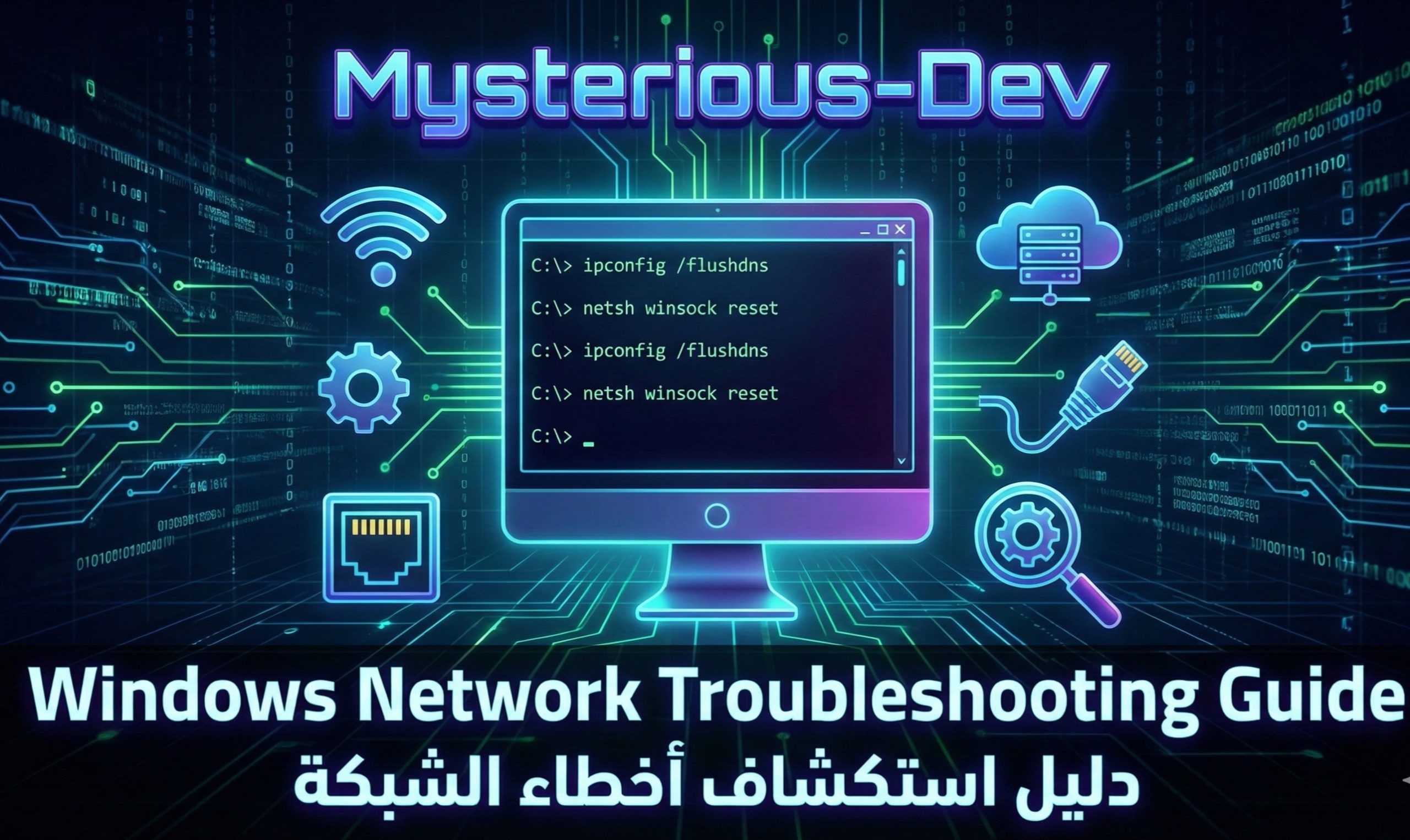
🛠️ Windows Network Troubleshooting Guide
🛠️ دليل صيانة واستكشاف أخطاء الشبكة والإنترنت في ويندوز
🛠️ الدليل الشامل لصيانة مشاكل اتصال الشبكة وشهادات الأمان SSL
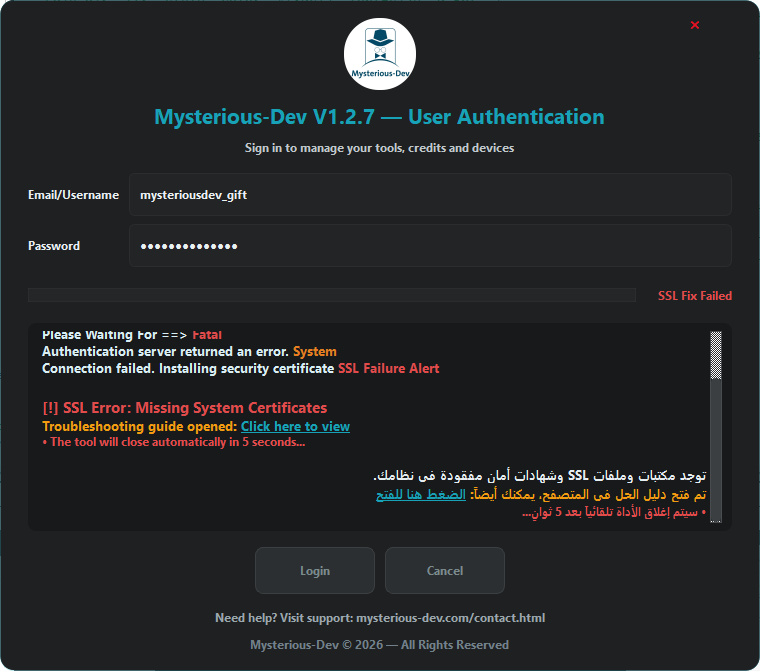
⚠️ تنبيه مهم بخصوص أخطاء شهادات الأمان (SSL) وتوجيه الاتصال
أخي الكريم، مشكلتك الأساسية هي شهادات SSL؛ الجهاز يحتوي على برامج كراك وتفعيل غير رسمية تقوم بإعادة توجيه الاتصالات لبروتوكولاتها وتعديل ملفات النظام.
الأداة تحاول تحميل شهادة SSL تلقائياً؛ وفي حال نجح التحميل ستطلب منك إعادة تسجيل الدخول فوراً دون إغلاق النوافذ أو أي شيء. وفي حال استمر ظهور خطأ الـ SSL، يلزمك تثبيت حزمة SSL يدوياً عبر الروابط المباشرة التالية:
مخصص لويندوز 64-bit لمعالجات Intel / AMD (الأكثر شيوعاً) 📥 Win32 OpenSSL Light (x86)
مخصص لويندوز 32-bit للأجهزة والأنظمة القديمة 📥 Win64 ARM OpenSSL Light
مخصص لأجهزة ويندوز الحديثة بمعالجات ARM64 (مثل Surface وSnapdragon) 📦 WinUniversal OpenSSL Light
الحزمة الشاملة التلقائية لجميع بيئات ويندوز المختلفة
إذا استمرت المشكلة أو كنت بحاجة إلى الحزم الكاملة أو إصدارات مختلفة، يرجى التوجه لصفحة التوزيعات الرسمية المباشرة من هنا:
🔗 زيارة مستودع حزم OpenSSL الرسمي (Slproweb Windows Binaries)
🔗 مقال لحل مشكلة أخرى ذات صلة:
إذا واجهتك أيضاً مشكلة رمز الخطأ 0xc0000005 يمكنك متابعة الحل عبر الرابط:
دليل حل مشكلة 0xc0000005.
📌 نظرة عامة
يقدم هذا المقال خطوات رسمية لصيانة نظام ويندوز واستكشاف أخطاء الشبكة والإنترنت باستخدام أدوات النظام المدمجة. جميع الأوامر مخصصة للصيانة والإصلاح فقط وضمن ممارسات مدعومة من مايكروسوفت لإعادة إعدادات الاتصال إلى الوضع الطبيعي.
🪟 خطوات تشغيل موجه الأوامر (CMD) أو PowerShell كمسؤول
- افتح قائمة ابدأ (Start Menu).
- اكتب cmd أو powershell.
- اضغط بالزر الأيمن للفأرة على موجه الأوامر.
- اختر تشغيل كمسؤول (Run as Administrator).
- انسخ الكود أدناه والصقه دفعة واحدة ثم اضغط Enter.
netsh advfirewall reset
netsh advfirewall set allprofiles state on
netsh int ip reset
netsh winsock reset
netsh int ipv4 reset
netsh int ipv6 reset
netsh winhttp reset proxy
reg delete "HKCU\Software\Microsoft\Windows\CurrentVersion\Internet Settings" /v ProxyServer /f
reg delete "HKCU\Software\Microsoft\Windows\CurrentVersion\Internet Settings" /v ProxyEnable /f
ipconfig /flushdns
ipconfig /registerdns
net stop dnscache
net start dnscache
ipconfig /release
ipconfig /renew
attrib -r -s -h C:\Windows\System32\drivers\etc\hosts
del /f /q C:\Windows\System32\drivers\etc\hosts
echo 127.0.0.1 localhost > C:\Windows\System32\drivers\etc\hosts
RunDll32.exe InetCpl.cpl,ResetIEtoDefaults
📋 تفاصيل ما تقوم به الأوامر:
- إعادة ضبط الجدار الناري: تصفير قواعد Firewall وإعادتها للوضع السليم لحل مشاكل الاتصال.
- إصلاح بروتوكولات TCP/IP و Winsock: يعالج تلف الإعدادات التي تؤثر على الاتصال بالإنترنت.
- إزالة إعدادات البروكسي: حذف إعدادات البروكسي التي تمنع البرامج من الوصول للسيرفر.
- تفريغ كاش DNS وتجديد IP: تنظيف المسارات المؤقتة وطلب عنوان IP جديد.
- إعادة ملف Hosts الافتراضي: مسح التوجيهات الخاطئة الناتجة عن برامج الكراك لضمان نقاء الاتصال.
- إعادة إعدادات الإنترنت: استرجاع الضبط الافتراضي للاتصالات داخل الويندوز.
🛠️ Windows Network & SSL Troubleshooting Guide
⚠️ Important Notice: SSL Certificate Errors & Traffic Redirection
The root cause of authentication failures is usually missing SSL certificates or crack/patch tools modifying local routing to redirect connections locally.
The application attempts to auto-download required certificates. If resolved, you will be prompted to re-login immediately without closing the dialog. If the SSL error persists, manual installation of official OpenSSL packages is required:
For standard 64-bit Windows systems (Intel / AMD processors) 📥 Win32 OpenSSL Light (x86)
For legacy 32-bit Windows systems and older environments 📥 Win64 ARM OpenSSL Light
For modern ARM64-powered Windows devices (Surface, Snapdragon laptops) 📦 WinUniversal OpenSSL Light
Universal installer compatible across various Windows configurations
If the issue persists or you require the full non-light binaries, visit the primary distribution repository:
🔗 Official OpenSSL Windows Binaries Directory (Slproweb)
🔗 Related Fix Article:
If you are also facing runtime error 0xc0000005, check the full solution here:
How to Fix Error 0xc0000005 Guide.
📌 Overview
This article provides official Windows troubleshooting steps to help users resolve common network and internet connectivity issues using built-in system tools. All commands are intended for system maintenance and repair only, following Microsoft-supported practices.
🪟 How to Run Command Prompt or PowerShell as Administrator
- Open Start Menu.
- Type cmd or powershell.
- Right-click Command Prompt or PowerShell.
- Select Run as Administrator.
- Copy the code block below, paste it into the console, and press Enter.
netsh advfirewall reset
netsh advfirewall set allprofiles state on
netsh int ip reset
netsh winsock reset
netsh int ipv4 reset
netsh int ipv6 reset
netsh winhttp reset proxy
reg delete "HKCU\Software\Microsoft\Windows\CurrentVersion\Internet Settings" /v ProxyServer /f
reg delete "HKCU\Software\Microsoft\Windows\CurrentVersion\Internet Settings" /v ProxyEnable /f
ipconfig /flushdns
ipconfig /registerdns
net stop dnscache
net start dnscache
ipconfig /release
ipconfig /renew
attrib -r -s -h C:\Windows\System32\drivers\etc\hosts
del /f /q C:\Windows\System32\drivers\etc\hosts
echo 127.0.0.1 localhost > C:\Windows\System32\drivers\etc\hosts
RunDll32.exe InetCpl.cpl,ResetIEtoDefaults
📋 Details of Operations:
- Reset Firewall: Restores default firewall rules to fix blocked connections.
- Reset TCP/IP & Winsock: Repairs corrupted network protocol configurations.
- Clear Proxy: Clears proxy settings that may prevent applications from accessing the internet.
- Flush DNS & Renew IP: Cleans DNS cache and requests a new IP address.
- Restore Hosts File: Restores the default hosts file to prevent incorrect routing from crack tools.
- Reset Internet Settings: Resets system internet settings to default values.